Backup & Restore DB Cluster
Add a postgres role to the cluster DB
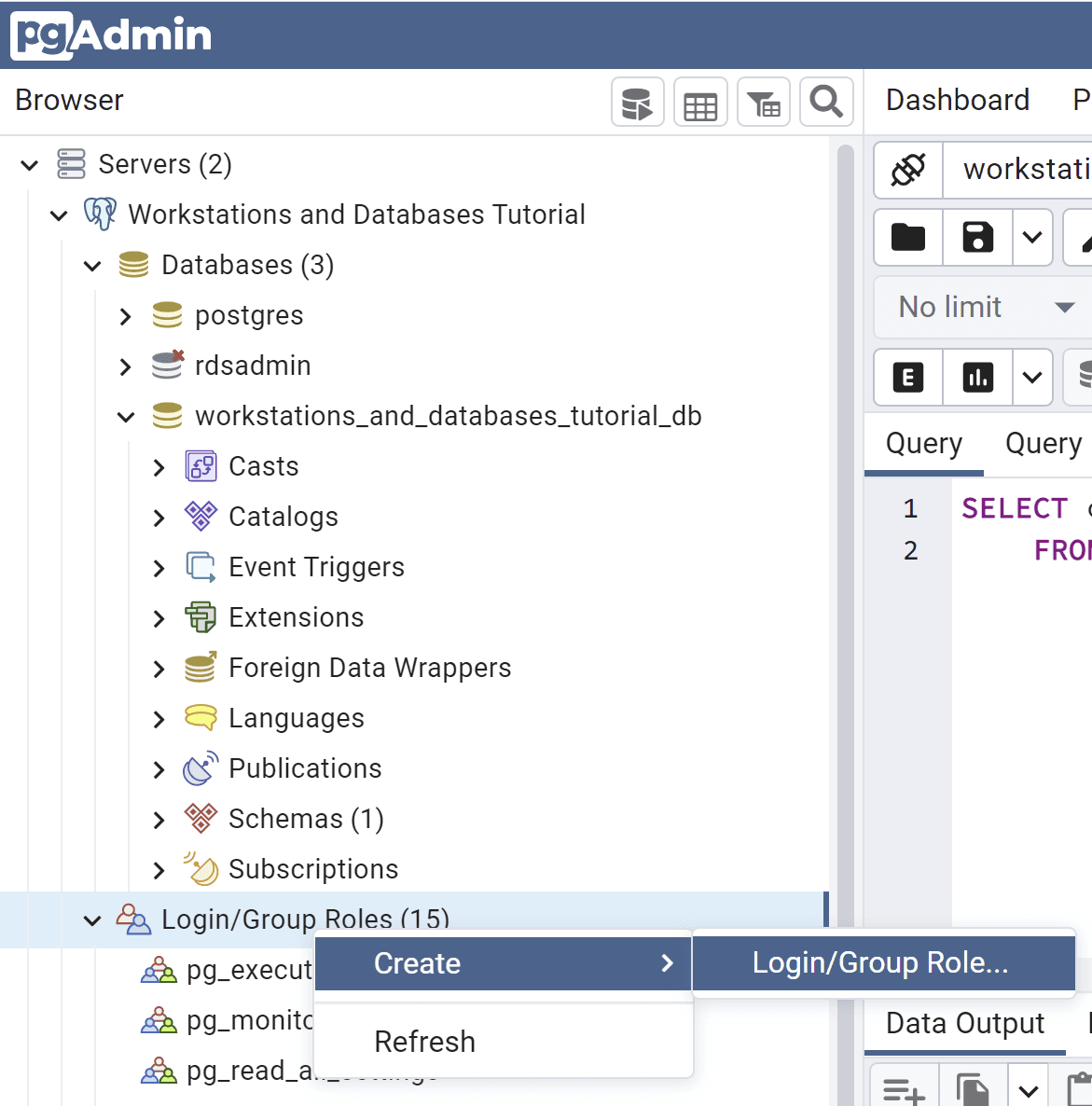
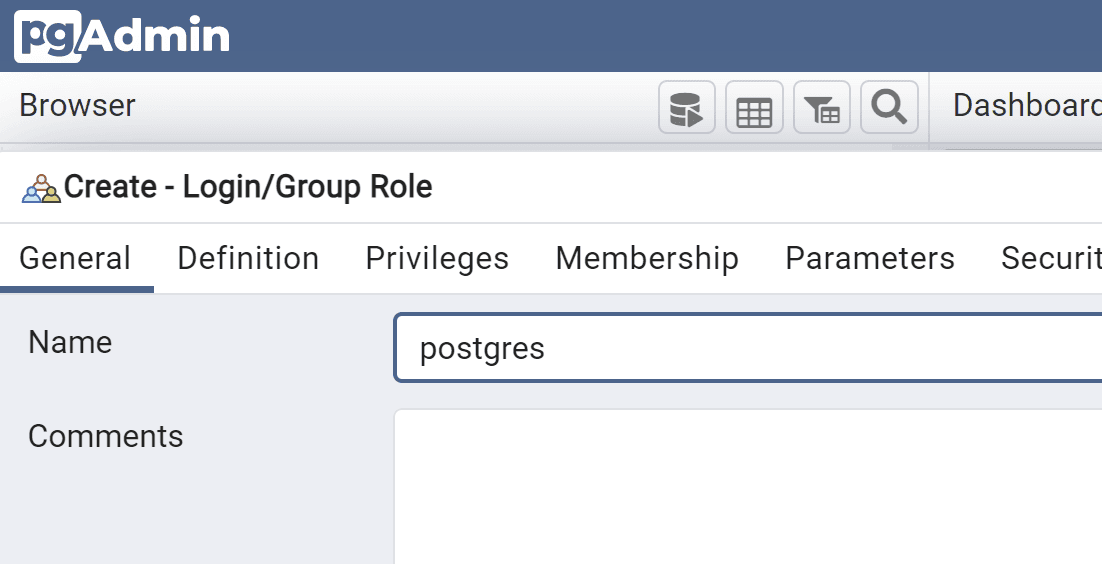
Right-click Login/Group Roles in the Workstations and Databases Tutorial server connection in pgadmin and add a postgres role.
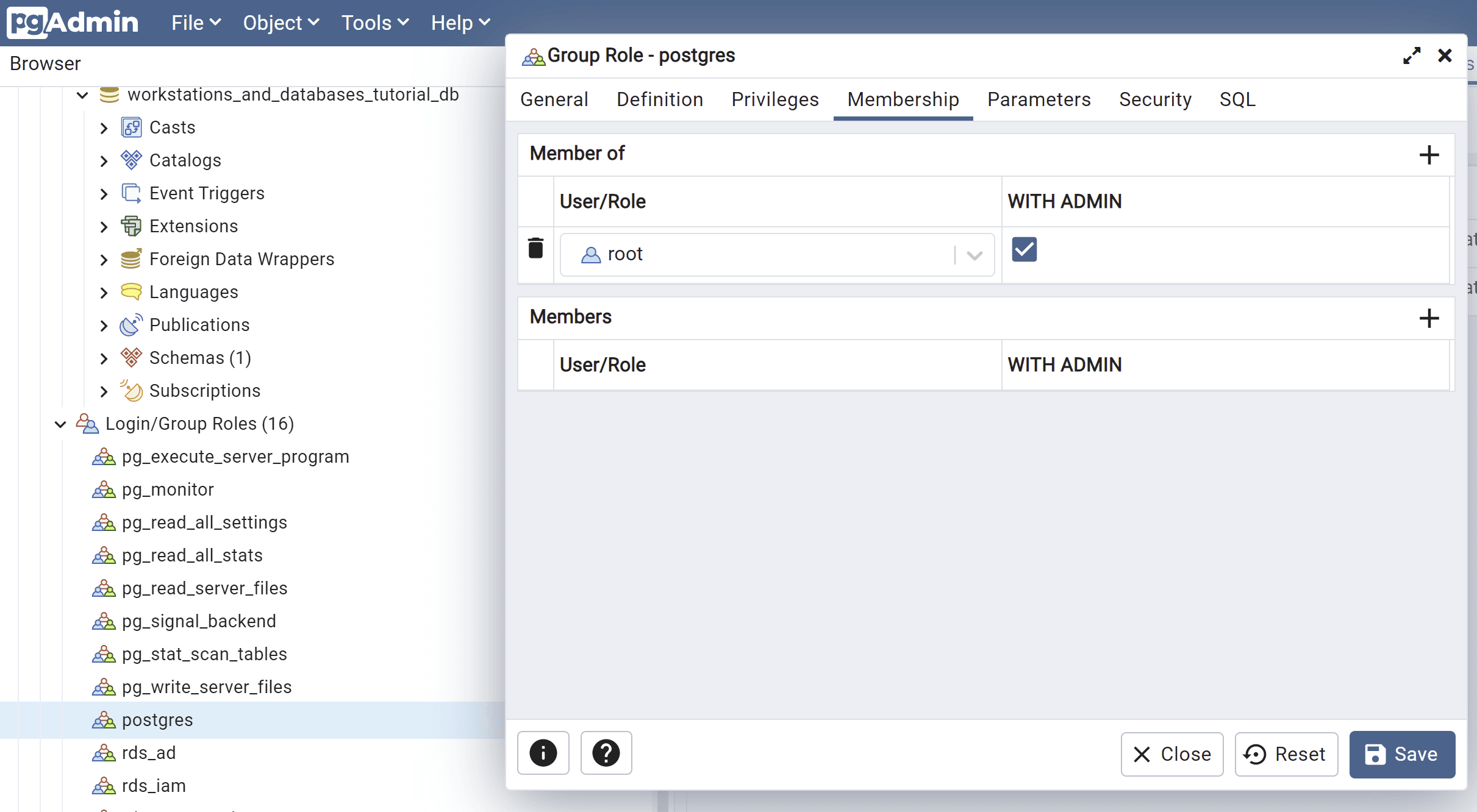
Right-click the postgres role and select properties, and add the to the root group with admin privileges in the Membership tab.
Backup the cluster DB using pgadmin
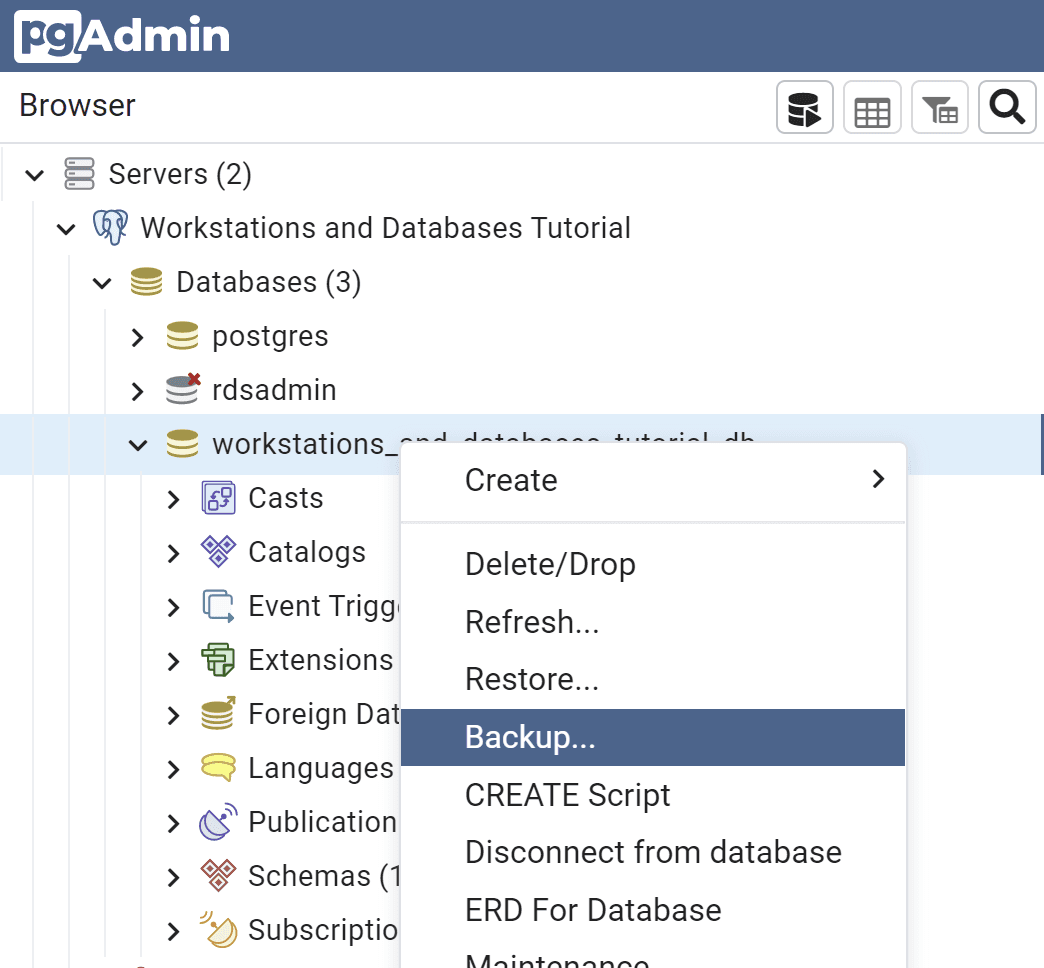
Select the workstations_and_databases_tutorial_db database in the Workstations and Databases Tutorial server connection in pgadmin and right-click to backup the database.
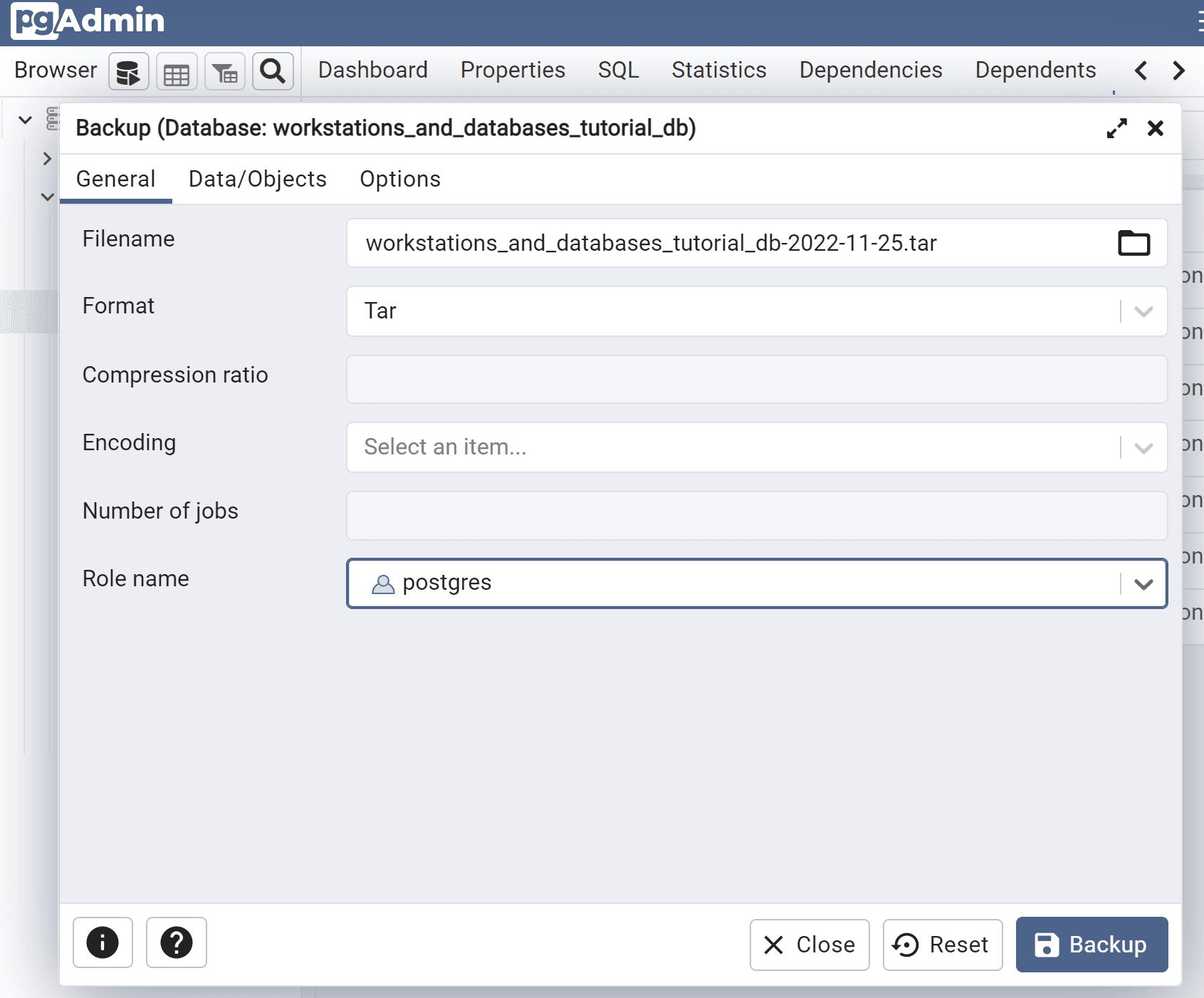
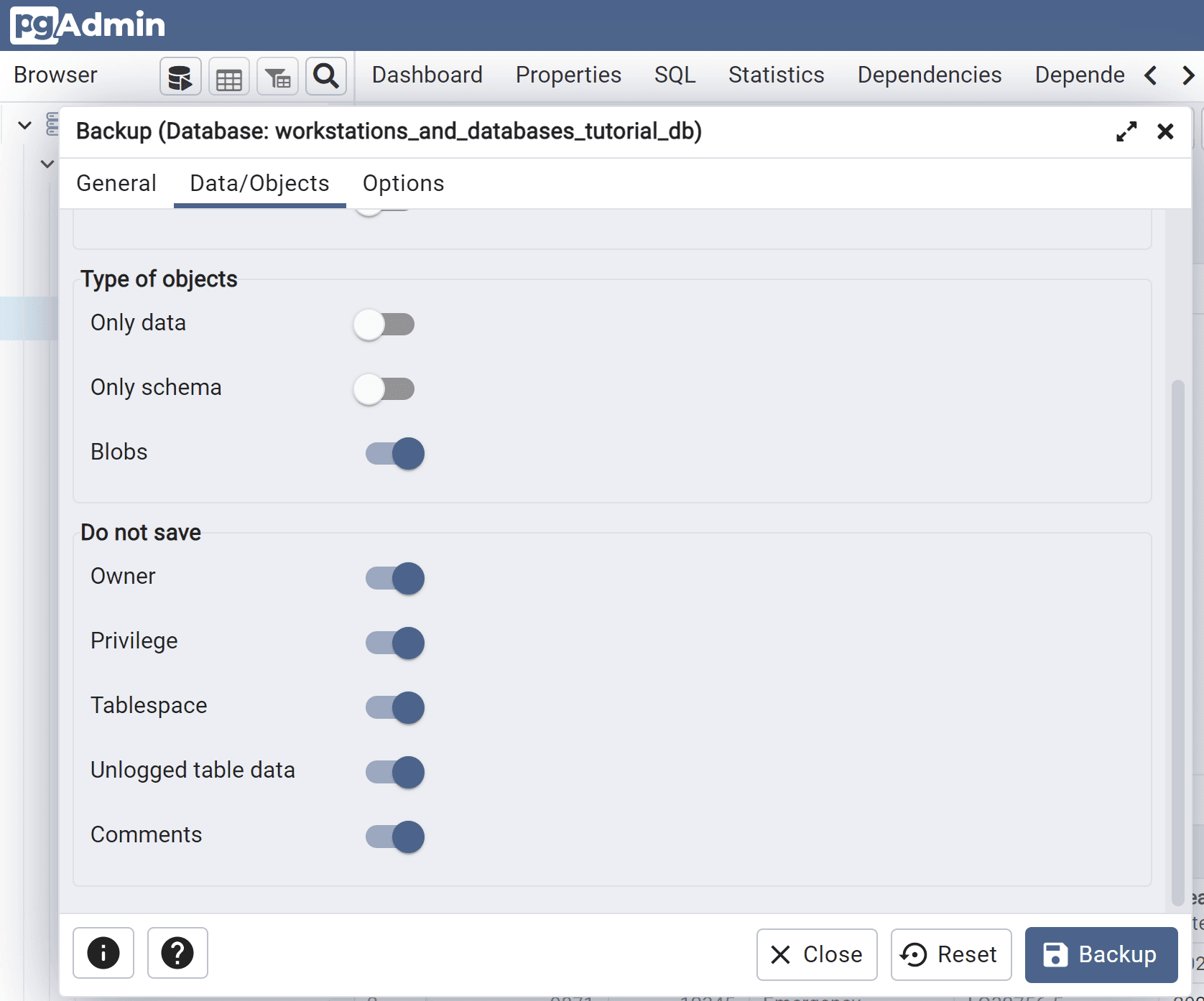
Specify a backup filename (e.g. workstations_and_databases_tutorial_db-2022-11-25.tar), format as Tar, assign role name postgres and set all the Data/Objects Do not save options..
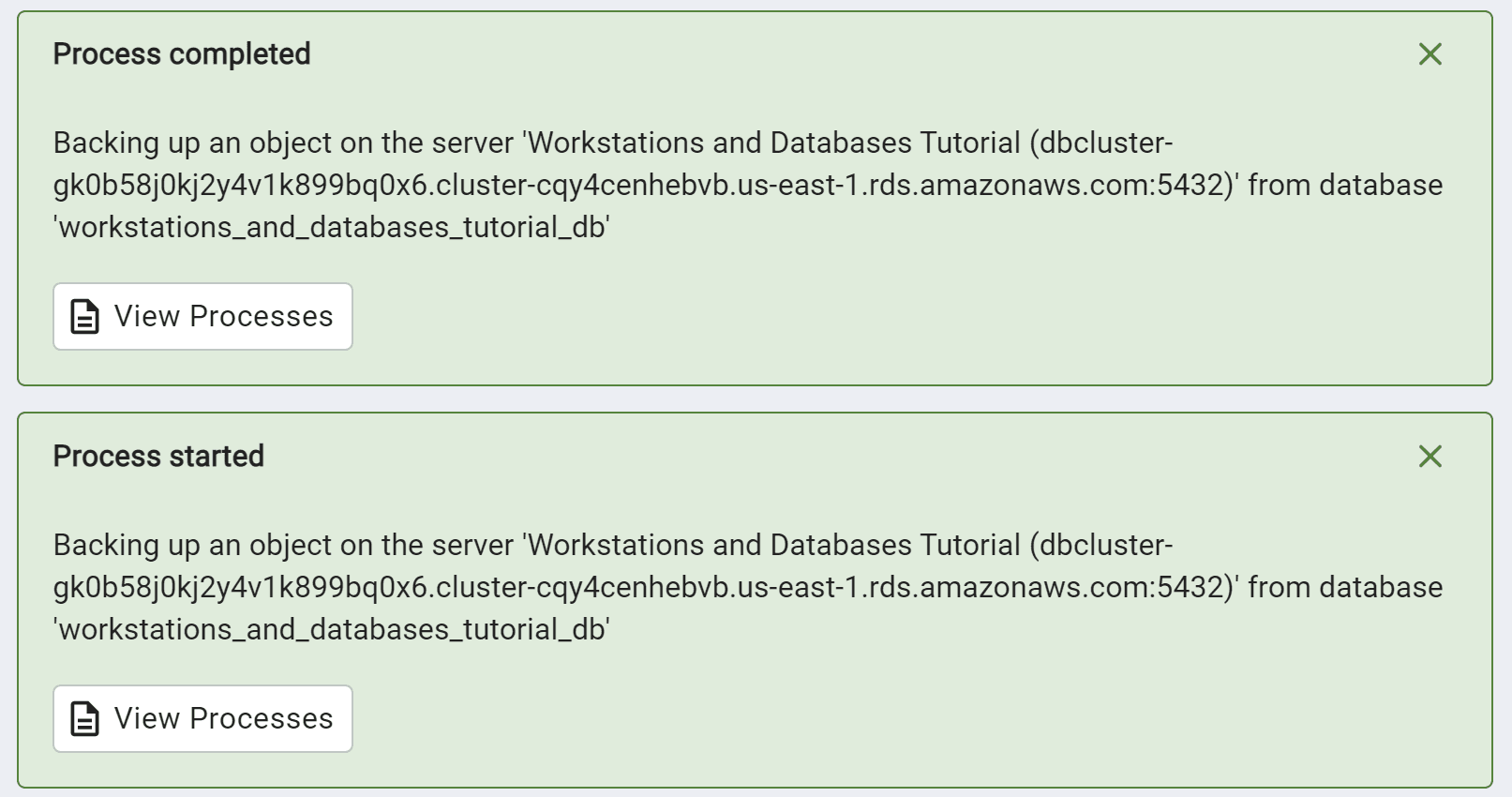
Copy the backup file from the pgadmin container to the workstation filesystem
Since pgadmin is running in a Docker container on the data analysis workstation, we are going to have to connect to the pgadmin container shell and copy the backup file to the mount point shared by the container and the workstation (i.e. /home/dnanexus/db_backups). On the data analysis workstation:
Connect to the shell in the pgadmin container.
docker exec -it pgadmin sh
/pgadmin4 $
Copy the backup file from the pgadmin backup directory to the container-host shared volume.
cd /var/lib/pgadmin/storage/user_domain.com
workstations_and_databases_tutorial_db-2022-11-25

cp /var/lib/pgadmin/storage/user_domain.com/workstations_and_databases_tutorial_db-2022-11-25.tar /home/dnanexus/db_backups
Control-D to exit the container shell and verify the presence of the backup file on the workstation in the container-host shared mount point.
ls db_backups/
workstations_and_databases_tutorial_db-2022-11-25
Upload the backup file to precisionFDA
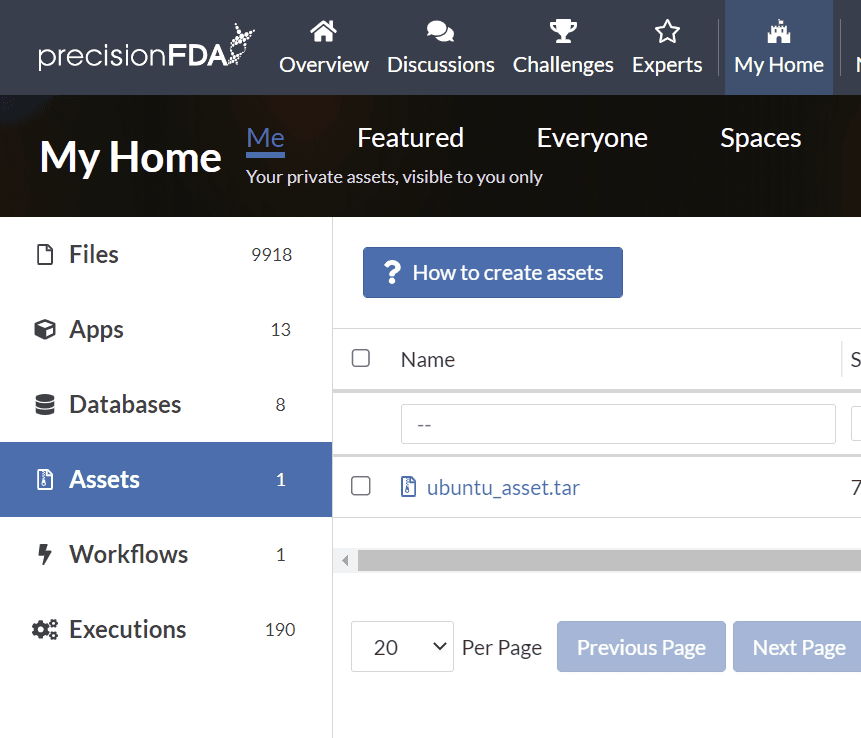
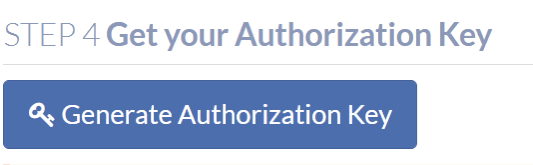
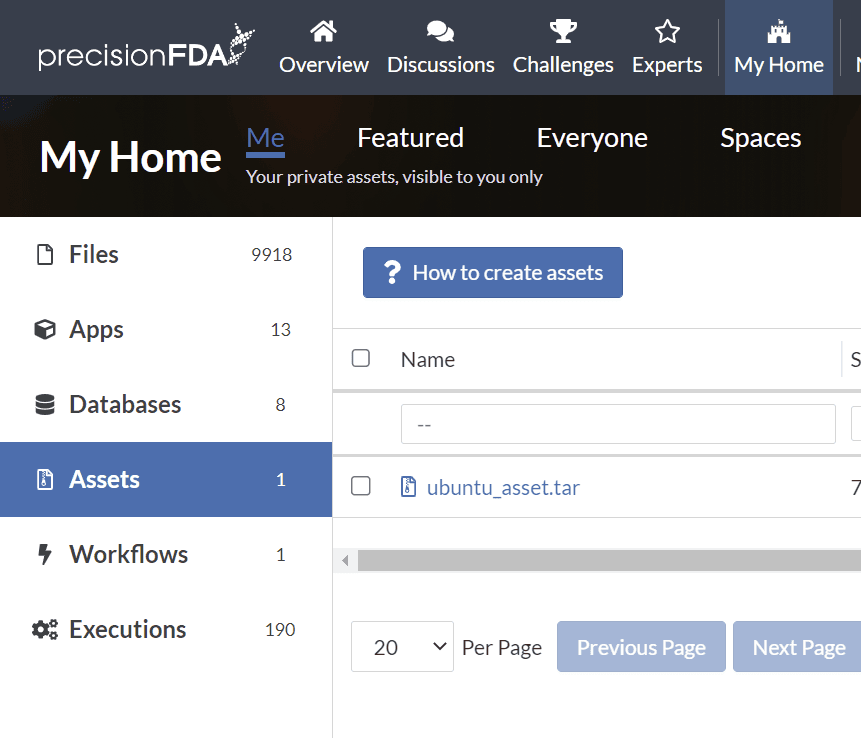
Under My Home Assets, click on the How to create assets button to find the button to generate the temporary authorization key that you’ll use with the CLI.
On the data analysis workstation shell:
key="..."

pfda upload-file -key $key -file ~/db_backups/workstations_and_databases_tutorial_db-2022-11-25.tar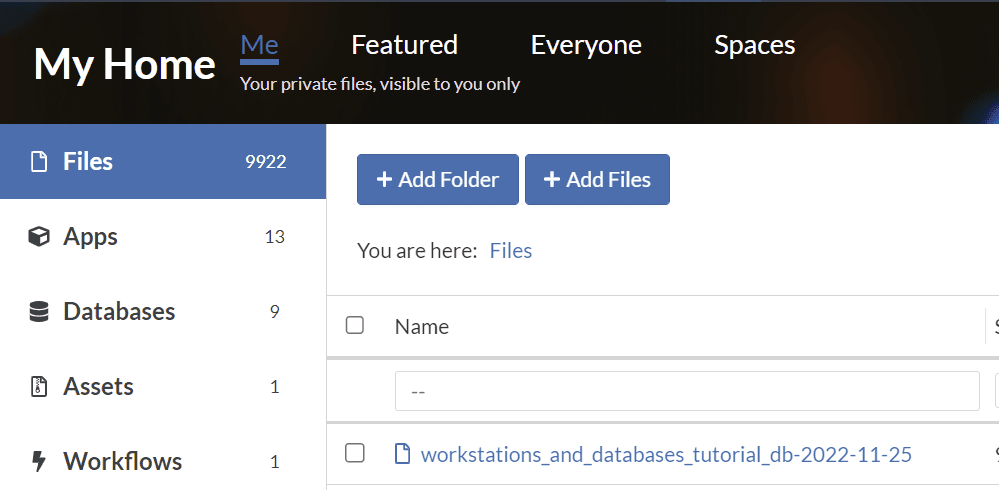
Restore the backup to the data analysis workstation local DB
Using the pgadmin connection to the data analysis workstation db, create a new database workstations_and_databases_tutorial_db, owner postgres.
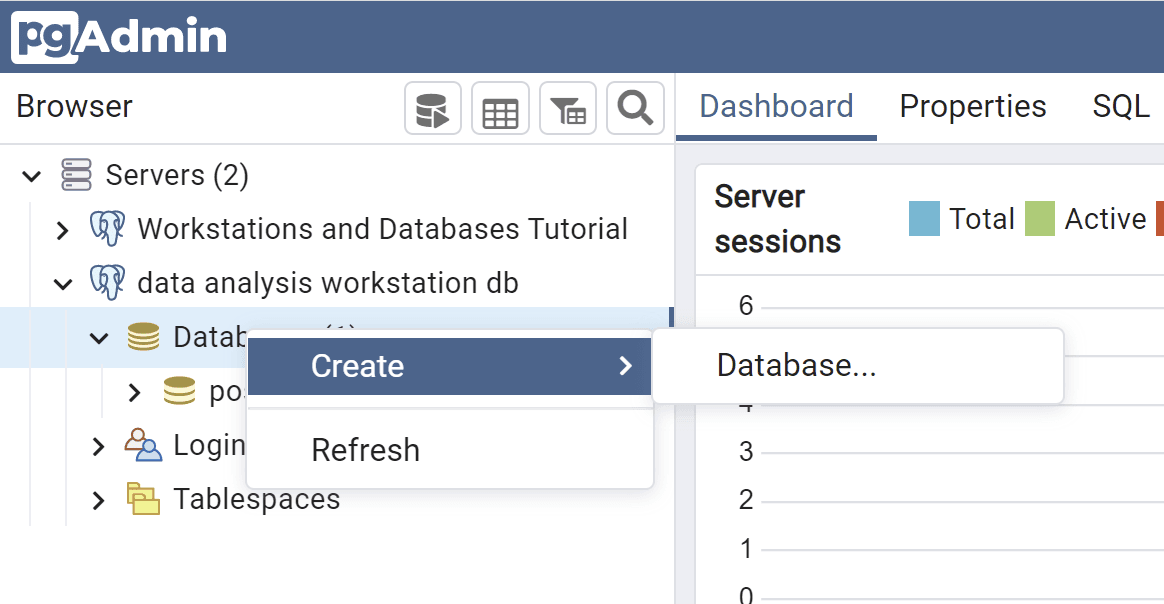
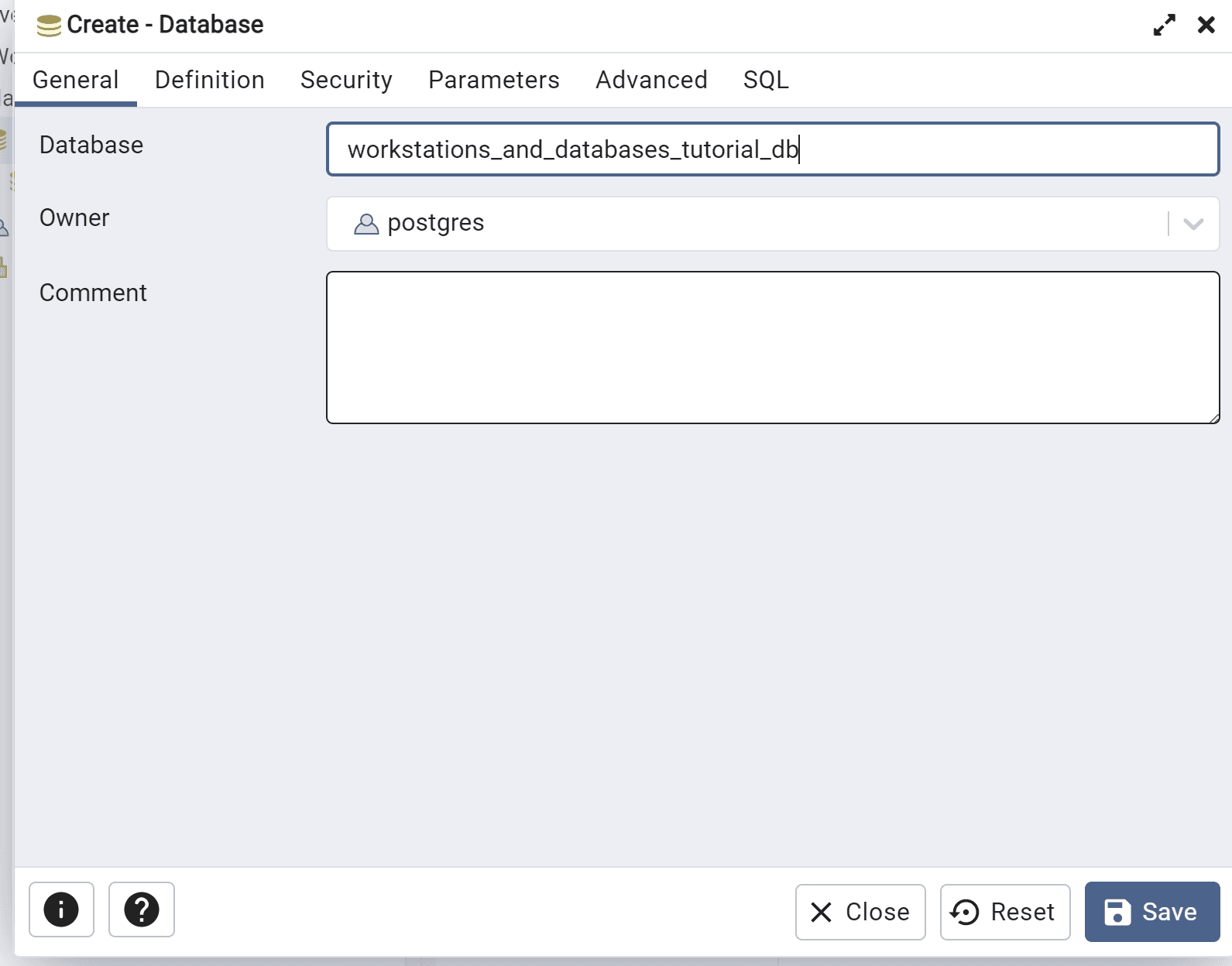
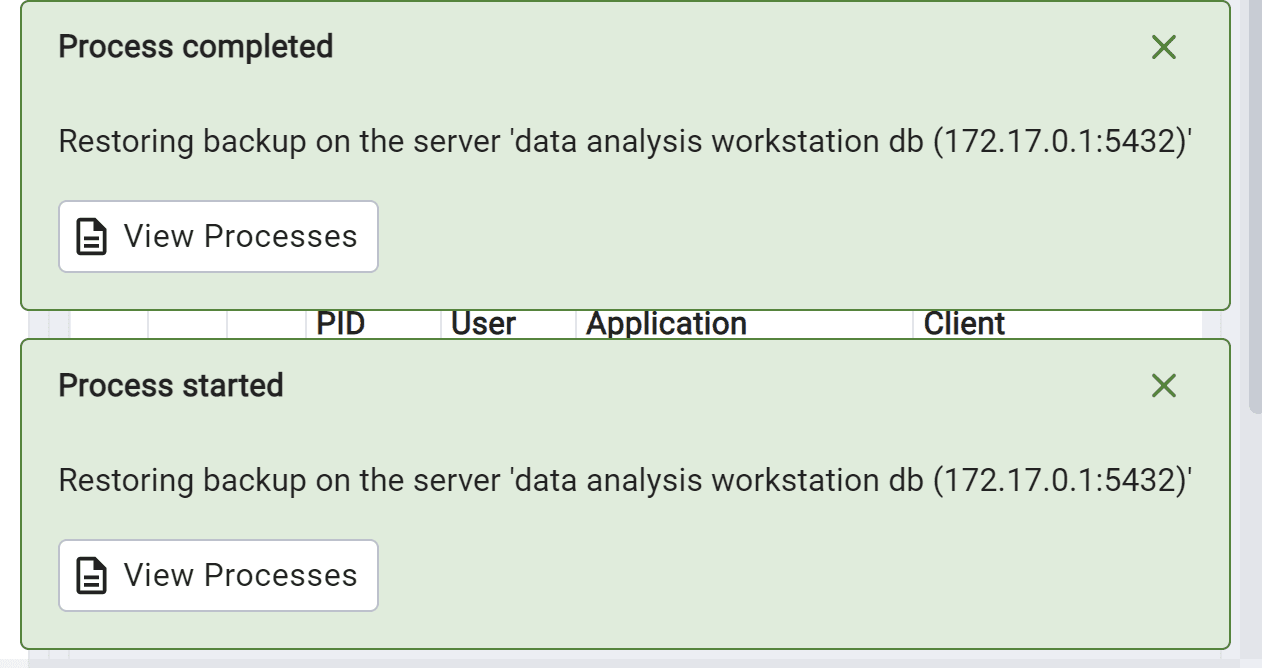
Right-click on the new database on the data analysis and workstation db server connection and restore the backup to the local server (from the file in the pgadmin container), using custom or tar format, and the postgres role name.
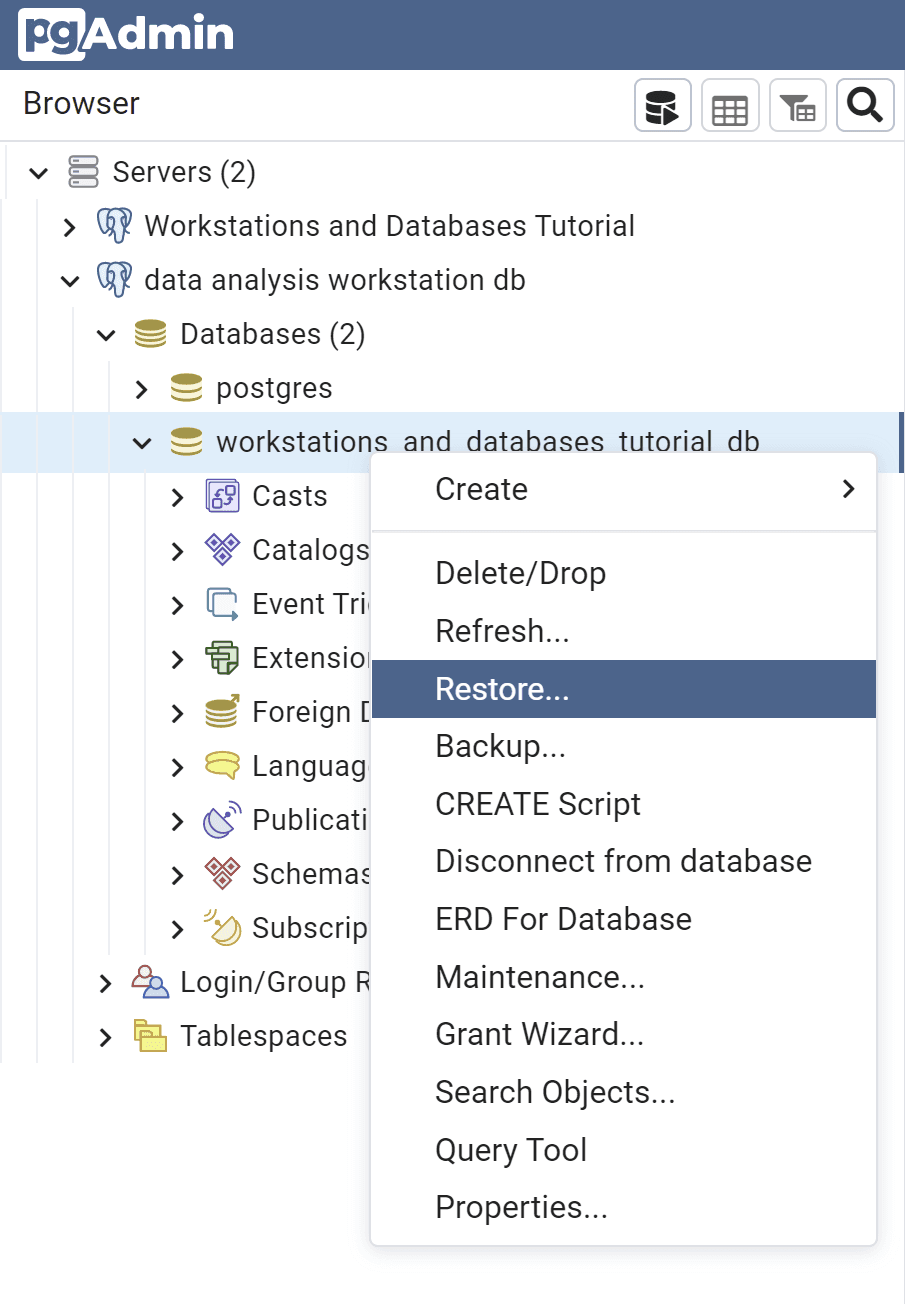
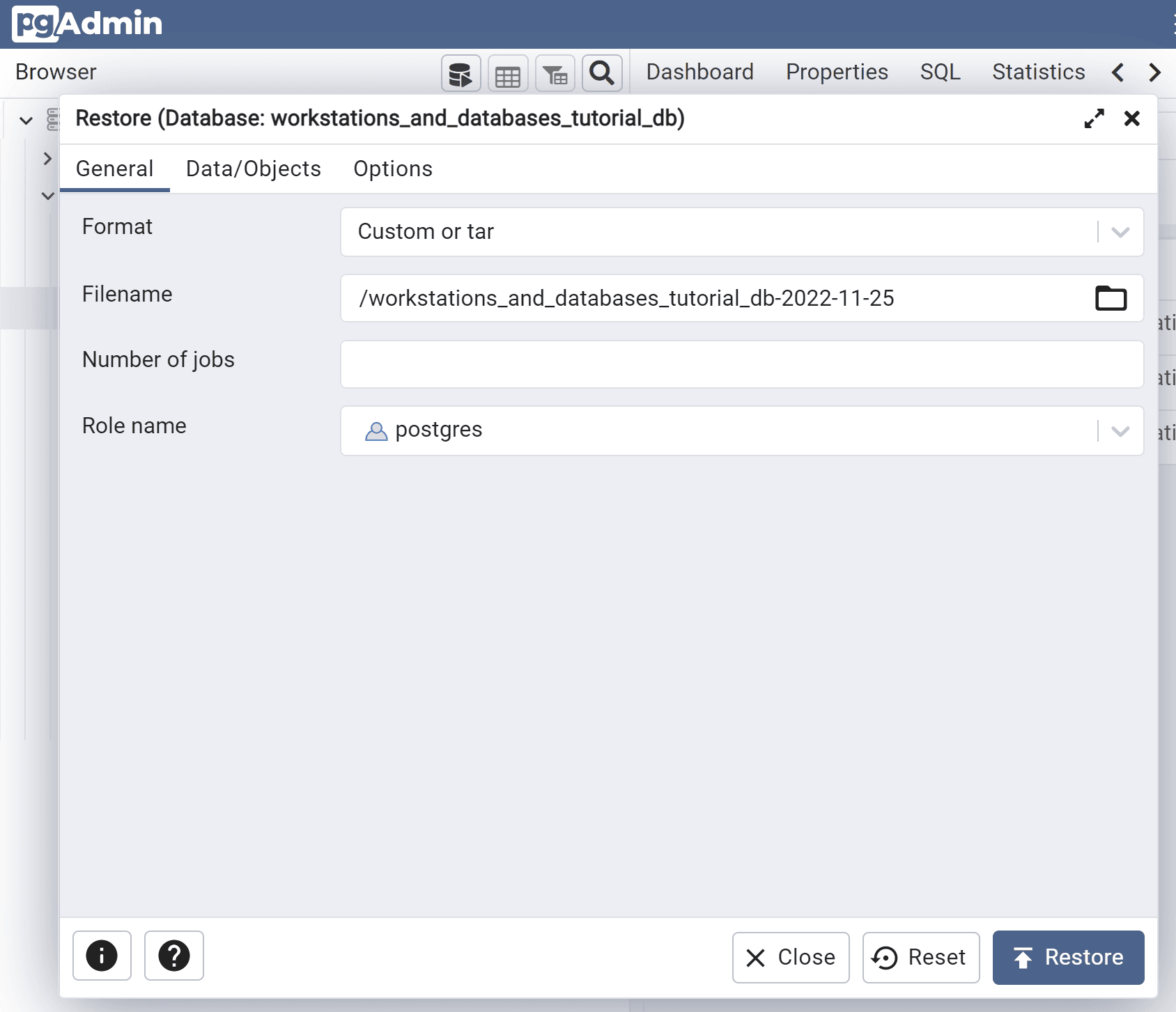
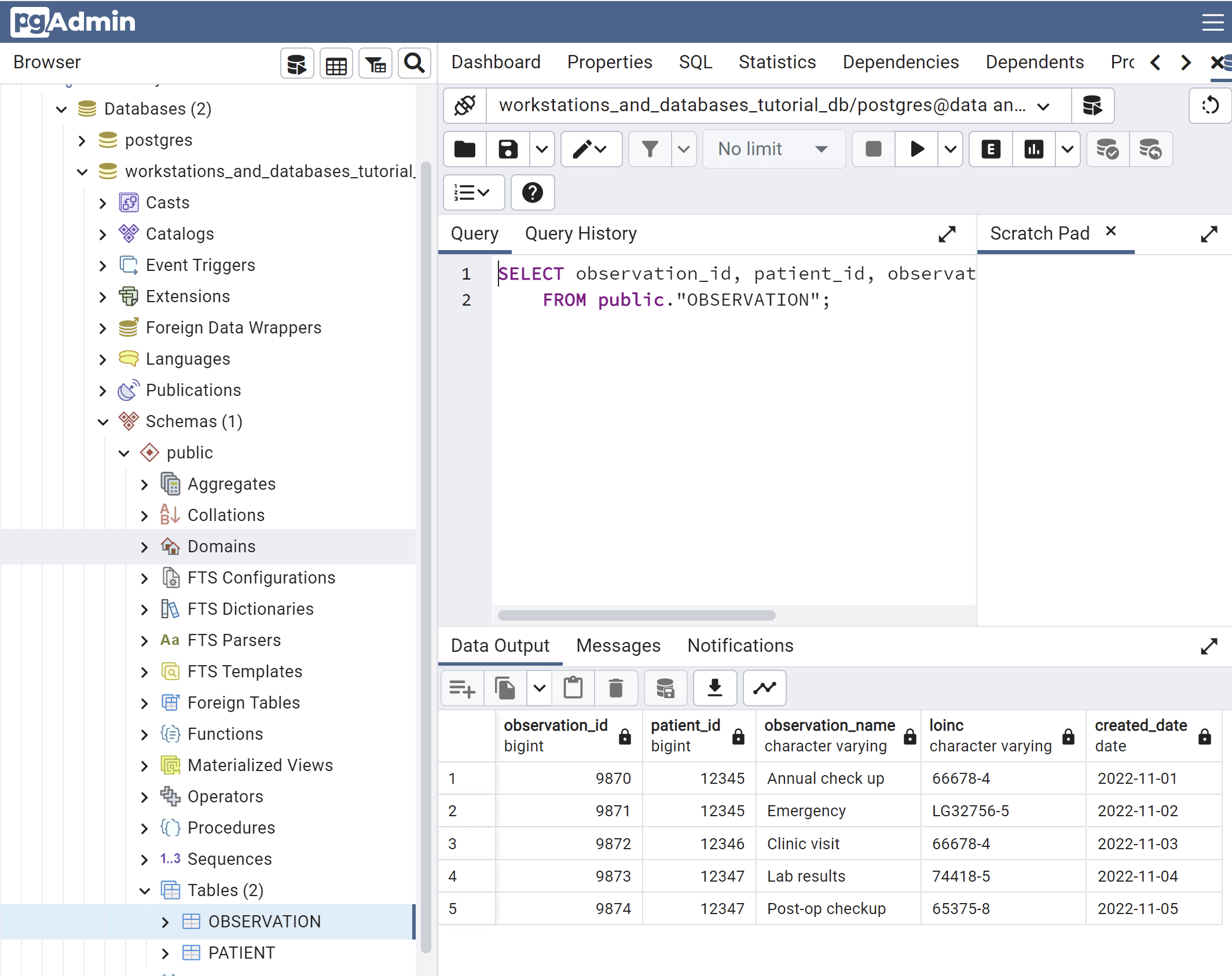
Select the contents of the restored PATIENT and OBSERVATION tables.
Restore the backup to the data analysis notebook local DB
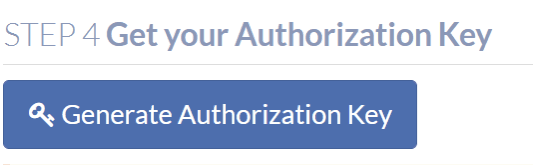
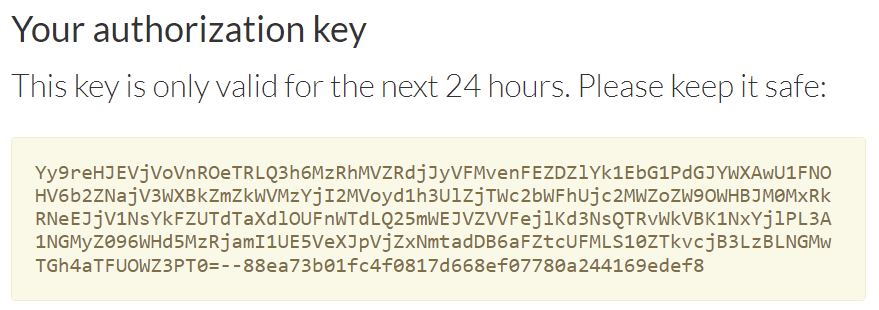
Under My Home Assets, click on the How to create assets button to find the button to generate the temporary authorization key that you’ll use with the CLI.
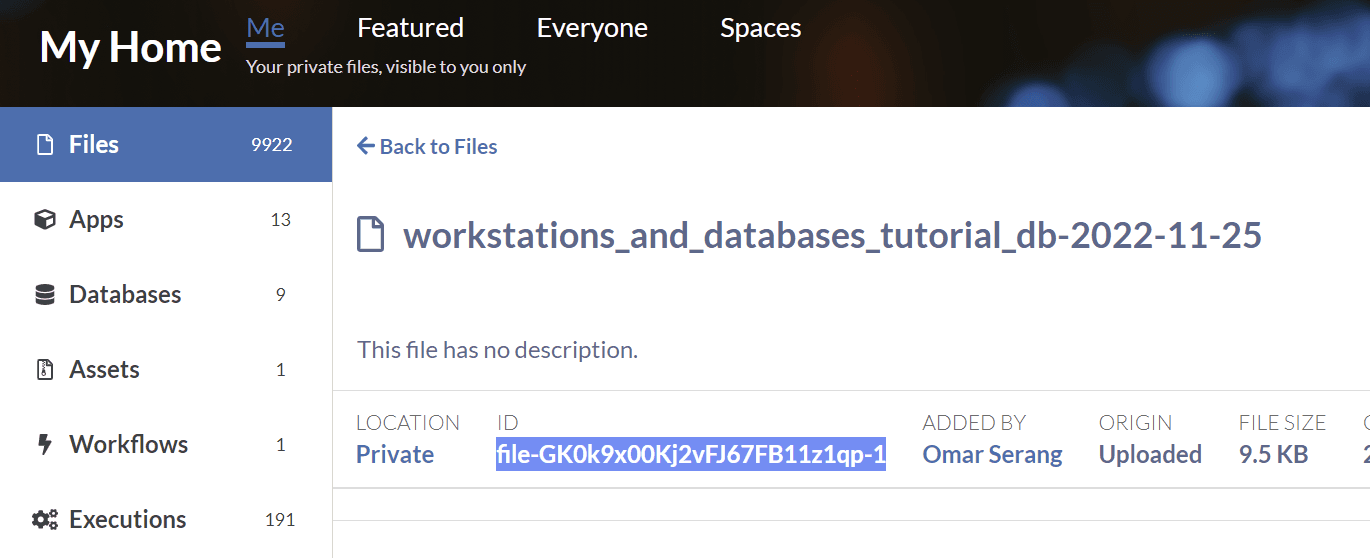
Click into the detail page for the backup file and copy the file ID.
In a terminal window in the data analysis jupyterLab notebook, download the backup file using its file ID as copied in the step above:
mkdir ~/db_backups
cd db_backups
key="..."
pfda download -key $key -file-id file-GK172180Kj2x743JPy4KGbf9-1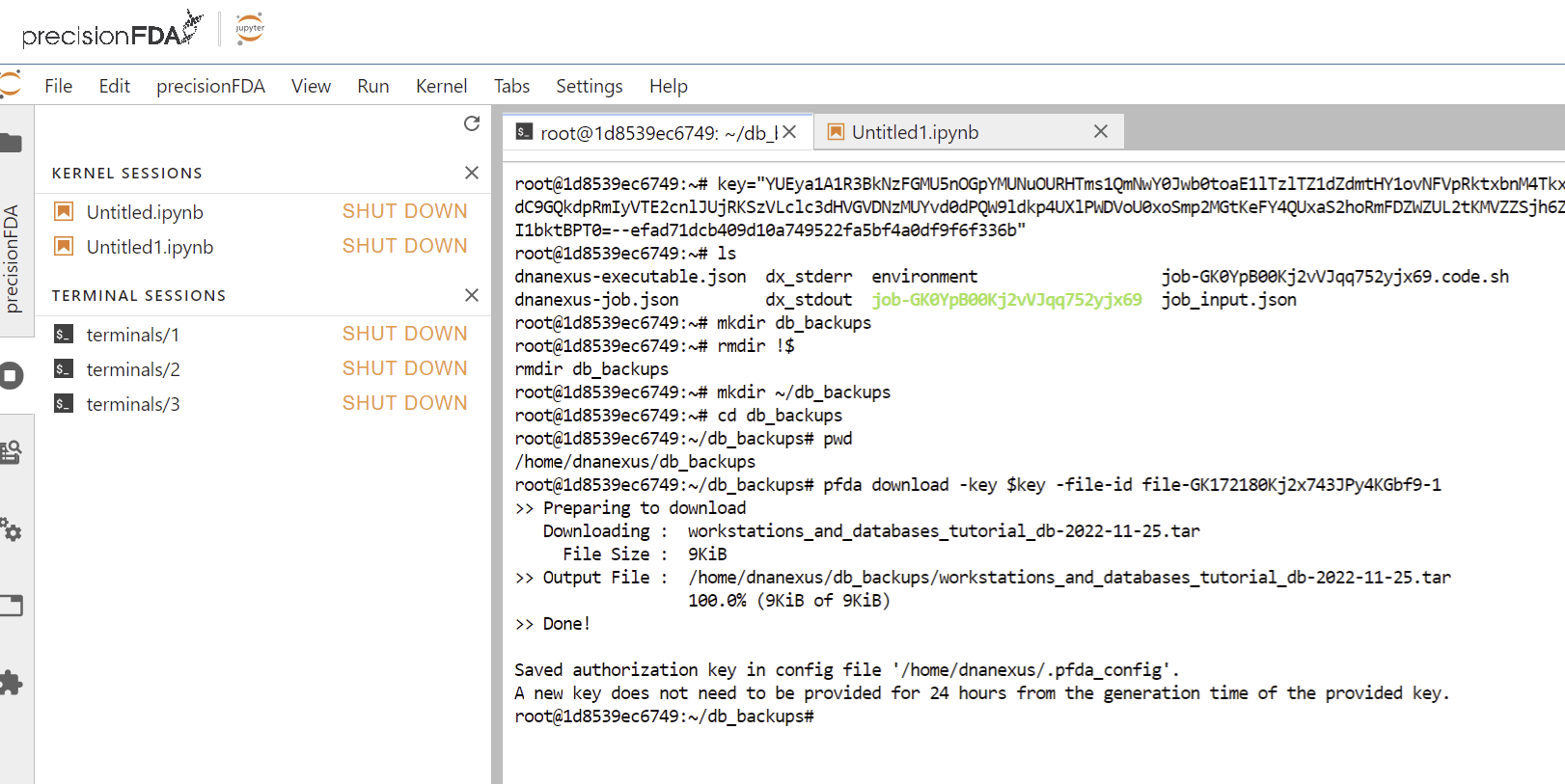
In psql connected to the local host, create a new database workstations_and_databases_tutorial_db, and a new user root.
psql -U postgres -h 127.0.0.1
psql (15.1 (Ubuntu 15.1-1.pgdg18.04+1))
postgres=#

CREATE USER root;

CREATE DATABASE workstations_and_databases_tutorial_db
    WITH
    OWNER = postgres
    ENCODING = 'UTF8'
    CONNECTION LIMIT = -1
    IS_TEMPLATE = False;
Ctrl-D to exit psql and use restore the database from the backup file.
pg_restore --dbname=workstations_and_databases_tutorial_db --verbose ~/db_backups/workstations_and_databases_tutorial_db-2022-11-25.tar -U postgresYou can ignore the errors associated with the root role not existing and use the Python notebook to select the contents from the restored database. We can observe the same results from newly restored database as from the cluster database that was the backup source. In a notebook Python code block:
import psycopg2
conn = psycopg2.connect("dbname='workstations_and_databases_tutorial_db' user='postgres' host='127.0.0.1'")

cur = conn.cursor()
cur.execute('SELECT * FROM public."PATIENT" limit 10')
# fetch results
rows = cur.fetchall()
# iterate through results
for row in rows:
    print ("PATIENT", row[0], row[1], row[2])

cur.execute('SELECT * FROM public."OBSERVATION" limit 10')
# fetch results
rows = cur.fetchall()
# iterate through results
for row in rows:
    print ("OBSERVATION", row[0], row[1], row[2])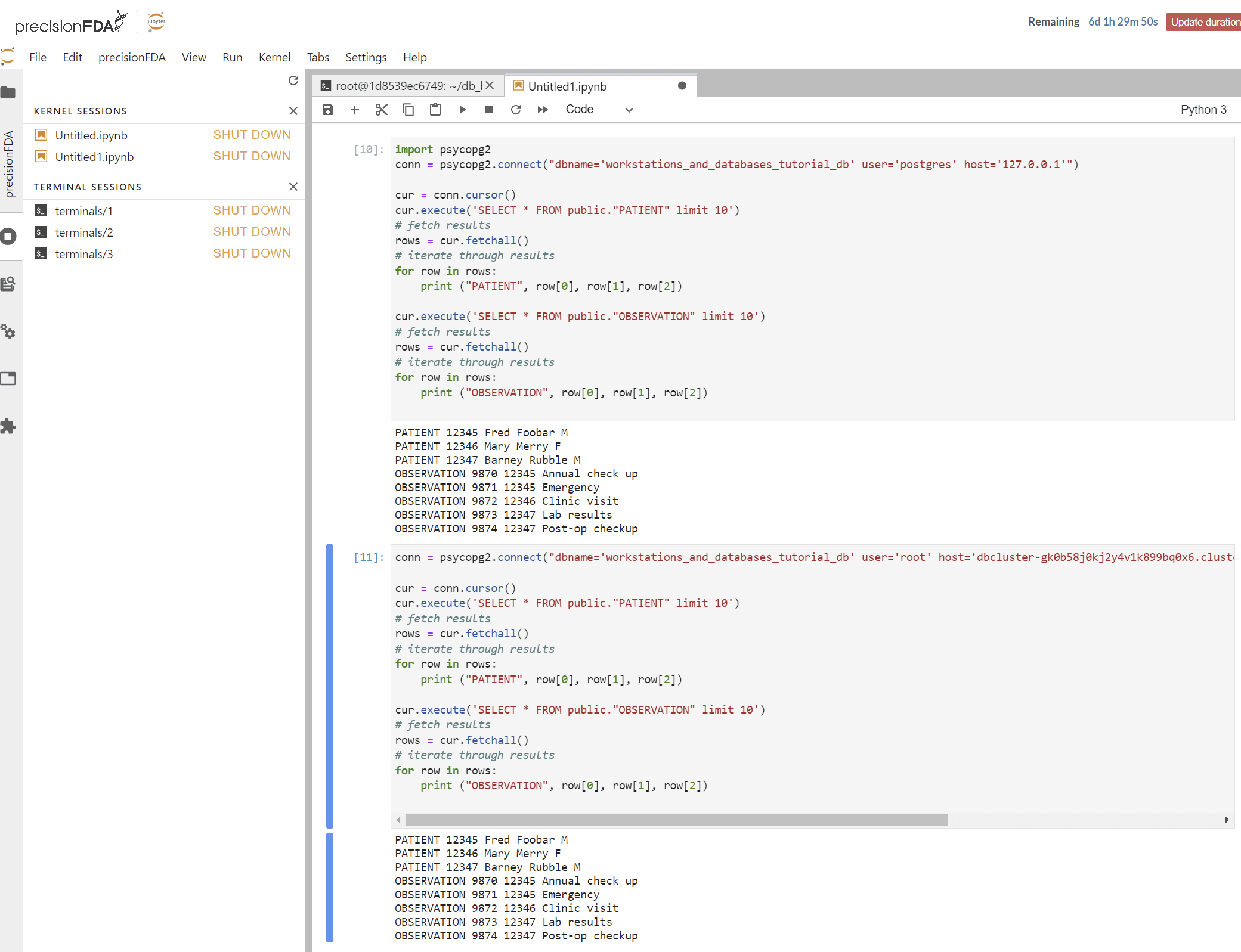
Stop or Terminate the Database Cluster
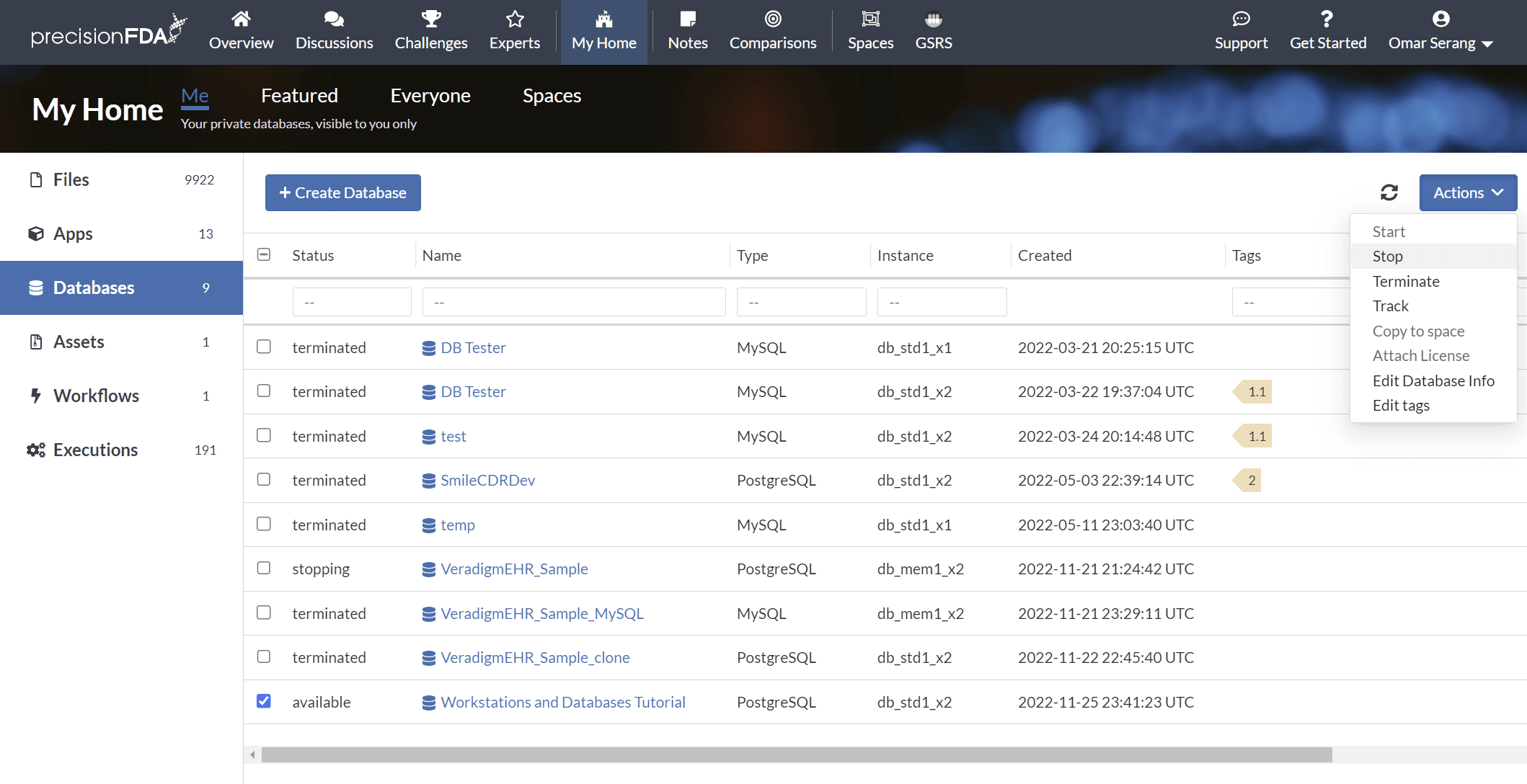
In My Home / Databases, select the database for action and either Stop or Terminate the database using the Action dropdown menu. If your data is already stored on precisionFDA and can be readily reconstituted into a new database, then select Terminate. If your database is a work in progress and you’d like to keep it intact while not using it overnight, or the weekend, then select Stop.